


Swipe left on the alarm you want to remove, then tap the “Delete” button to remove it.
Cocoon Pro 3 FAQ
Note: Use only the included original 5V/2A adapter and USB cable. Lower-output adapters and third-party accessories are not supported and may cause malfunction or damage.
Alarm
How do I delete an alarm?
How do I turn off the alarm when it rings?
Hold any button on the device to turn off the alarm this time. Disable it in the app to stop it permanently.
Why can't I control the device during snooze?
In Snooze status, button presses have no effect. The display shows the remaining snooze time, then returns to the standard clock after 5 seconds.
Does the alarm gradually get louder?
Yes, if you enable Fade-in during alarm setup. Simply choose Fade-in as the sound mode when configuring your alarm.
What’s the maximum number of alarms I can set?
Up to 5 alarms.
Clock
The clock time is incorrect.
Once connected, your device syncs its time with your phone automatically. If it doesn't:
1) Open the app and connect your Cocoon Pro 3.
*Make sure the power button appears on the device card—this means it's connected.
2) Swipe left on the device card → tap "Settings" → "Time Calibration".
How to adjust the clock brightness?
1) Open the app and connect your Cocoon Pro 3.
*Make sure the power button appears on the device card—this means it's connected.
2) Swipe left on the device card → tap "Settings" → “Clock Brightness”.
3) Choose your preferred brightness level and display duration.
4) Tap “Back” to save.
Can I change the clock color?
Sorry, the clock color cannot be changed.
How to update the clock time for DST?
To adjust for daylight saving time changes, please connect the device to the app to recalibrate the clock.
Setting
How to turn off the sound or light separately?
Hold the device’s Volume Down button to mute sound, and hold the Light button to turn off the light.
How to adjust the voice prompt volume?
1) Open the app and connect your Cocoon Pro 3.
*Make sure the power button appears on the device card—this means it's connected.
2) Swipe left on the device card → tap "Settings" → "Prompt Tone Volume".
3) Drag the slider to set the perfect volume.
How to customize the sound buttons?
(1) Open the app and connect your Cocoon Pro 3. Make sure it’s in "Device Mode" (check on the device card on the "Device" page). If not, press the bottom button to switch. Tap the device card to enter the "My Sounds" page.
(2) On the "My Sounds" page, tap “Edit”.
(3) Select a sound to replace, choose your favorite from the Library, and save.
(4) Your device will sync automatically.
Routine
How to customize my Routine?
1. Open the app and connect your device.
2. Make sure it’s in "Device Mode" (check on the device card on the "Device" page). If not, press the device's bottom button to switch.
3. Tap the device card to enter the "My Plan" page.
4. Tap “Edit” in the top right of the "My Routine" section.
5. Tap a step to edit, or hold and drag to reorder.
6. When you're ready for bed, touch the Routine button on the device. It will move through each enabled step as set in the Hotmoon App.
7. Touch the power button on the device to end your routine at any time.
Will my routine run by itself at a set time?
Not automatically. You must touch the Routine button on the device to start it.
What’s the difference between Routine and Schedule?
Routine lets you create a personalized sequence of sounds, lights, and durations for a specific moment, such as a bedtime routine. When you’re ready, simply tap the Routine button on the device to start it.
Schedule lets you set the device to automatically start and stop at specific times and repeat on selected days. It runs automatically based on your settings.
In short: Routine = start your personalized experience when you need it.
Schedule = automate playback at your chosen times.
What is the maximum number of steps in the routine that can be set?
Eight. You can personalize each step with sounds, light or both.
Connect & Log In
How to pair my device for Device Mode and Cloud Mode?
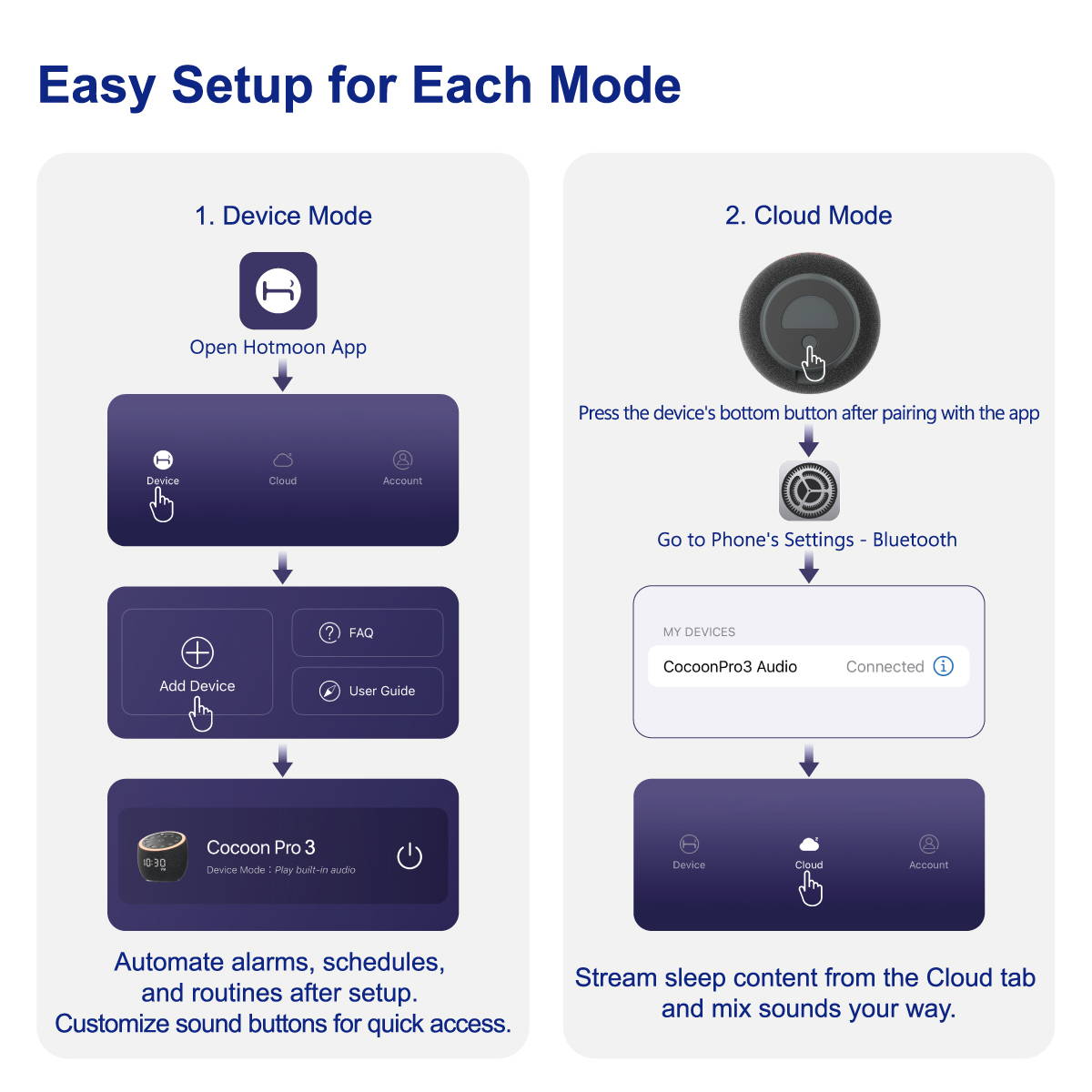
How to pair again after disconnection?
Press and hold the button on the bottom of the device until the white light flashes—this means it's ready to pair. Then tap 'Add Device' in the Hotmoon app and follow the on-screen steps to connect. Need help? Reach out anytime at support@hotmoon.com
Can I share my device with multiple users?
No. Cocoon Pro 3 is designed for personal use. If someone else needs control, just have them log in with your Hotmoon account—no limits, full access.
Can I log into my account on both my phone and tablet at the same time?
No, you can't. If you log in on one device, you'll be logged out of the other. This ensures that your data is complete and prevents any mix-ups.
How to reset my password?
Go to the login page of the Hotmoon app, tap 'Forgot Password,' and follow the instructions. If you encounter any issues, please contact us via email: support@hotmoon.com.
Others
What do Device Mode and Cloud Mode mean?
Device Mode:
Best for sleep and routines
Full app control
Cloud content plays on your phone
Cloud Mode:
Great for daytime streaming
Connect via Bluetooth of your phone
Cloud content plays on the device
Why does the app ask for location permission when connecting via Bluetooth on some Android devices?
Due to Android system requirements, devices running below Android 12 must grant location permission to use Bluetooth. This is enforced by Google—our app does not access, store, or track location data. Devices on Android 12+, or iOS, do not require this permission.
Can I save my DIY mix to the device?
No, saving DIY mixes directly to the device isn’t supported. But don’t worry! Your custom mix is safely stored in the cloud and ready to play anytime.
How long do the buttons' backlights last?
The backlight of all buttons automatically turns off after 10 seconds of no operation and can wake up by tapping any button.
I cannot unlock the VIP content of the Hotmoon app.
Note: Cloud content can only be unlocked by the account currently paired with the device.
- If Account A pairs the device and later gives it to Account B, Account B can access VIP content after pairing.
- Account A can still use other app features, but cannot access VIP content anymore.
Can Cocoon Pro 3 play sounds from my phone apps?
Yes. In Device Mode, you can run apps alongside. In Cloud Mode, all phone sounds play through Cocoon Pro 3.